How to measure single-cell texture
This guide shows you how to measure Haralick Texture Features on a per-cell basis.
Reference keys: texture, single-cell measurement
Prerequisite: You must have segmented the cells. Tracking is recommended but not required.
Enable Haralick Texture Features
Open the Measure tab for your population of interest.
In the measurement settings, check the Haralick option.
Configure the parameters
Channel: Select the channel to analyze (e.g., a DNA/DAPI channel for chromatin texture).
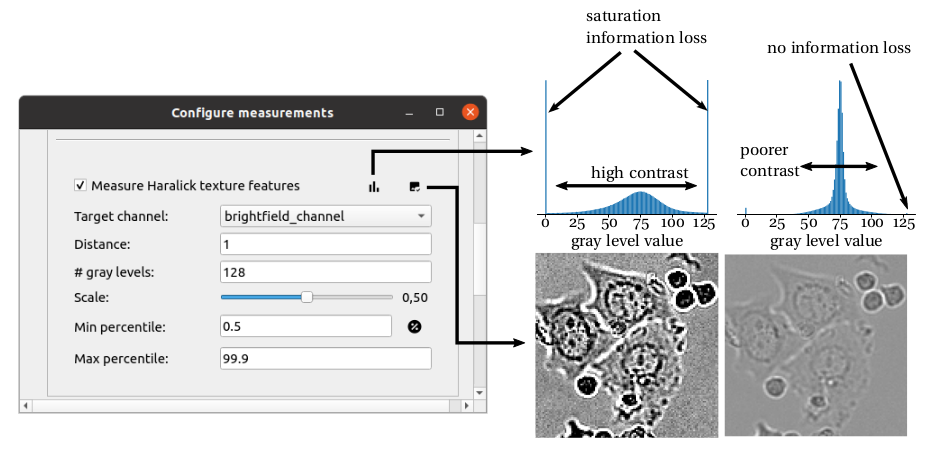
Distance: Set the pixel distance for the gray-level co-occurrence matrix computation (default:
1). Larger values capture coarser texture patterns.Gray levels: Set the number of quantized gray-level bins (default:
256). Lowering this value (e.g.,64) significantly speeds up computation at the cost of intensity resolution.Scale: Set a downscaling factor between
0and1to reduce cell crop size before GLCM computation. Useful for large cells.Normalization: Choose how to normalize intensities before quantization:
Percentile mode: clip intensities between a min and max percentile (e.g., 0.01% – 99.9%).
Absolute mode: clip between fixed pixel intensity values.
Run the measurements
Click Set to save the configuration.
In the control panel, check the MEASURE box and click Submit.
The following Haralick Texture Features will be appended to your measurement table: haralick_contrast, haralick_dissimilarity, haralick_homogeneity, haralick_energy, haralick_correlation, haralick_ASM.
Note
Haralick Texture Features are computationally expensive. Consider lowering the gray levels or using a scale factor < 1 for large datasets.