How to create a new experiment
This guide shows you how to create an experiment project and import your data. Learn more about the structure of an experiment project here.
Reference keys: experiment project, well, position, cell population, cell type, antibody, concentration, pharmaceutical agents
New project
Launch the software and go to File > New Experiment…
Set a folder where the project will be stored.
Fill in the requested fields (see Experiment Configuration (config.ini) for a full description of every parameter):
Set the experiment name (no spaces), number of wells, positions per well, spatial and temporal calibrations, number of frames, movie prefix, and image dimensions.
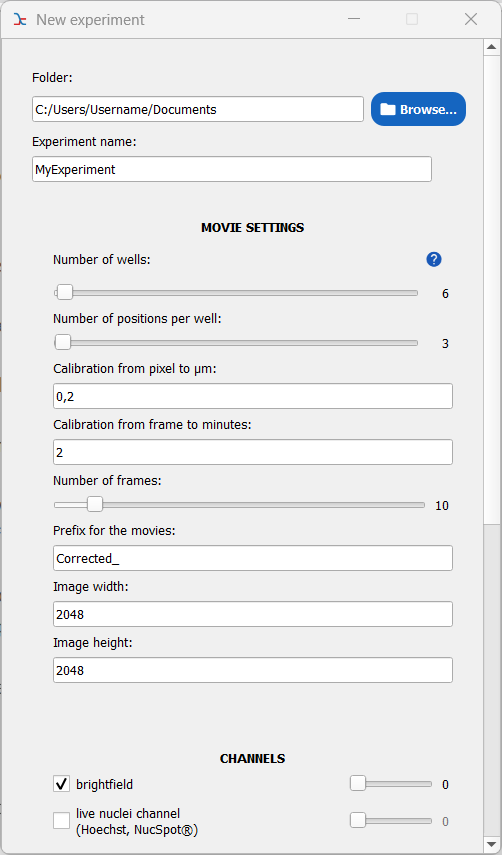
Fill requested information.
Select your channels and specify their index in the stack with the slider on the right side (0 is first, 1 is the second channel, etc). Use existing channels if appropriate. Else, create your own channel. Avoid spaces in the name.
Select your cell population(s). If you have an immune cell population, select
effectors. If you have cancer cells, selecttargets. Else create appropriate populations:Press the Add a cell population button.
Pick a name for the population: one word or camel case, no spaces, no special characters (e.g. redBloodCells, macrophages, bacteria).
Add. The population is added to the list of selectable populations. Check it to include it in the experiment.
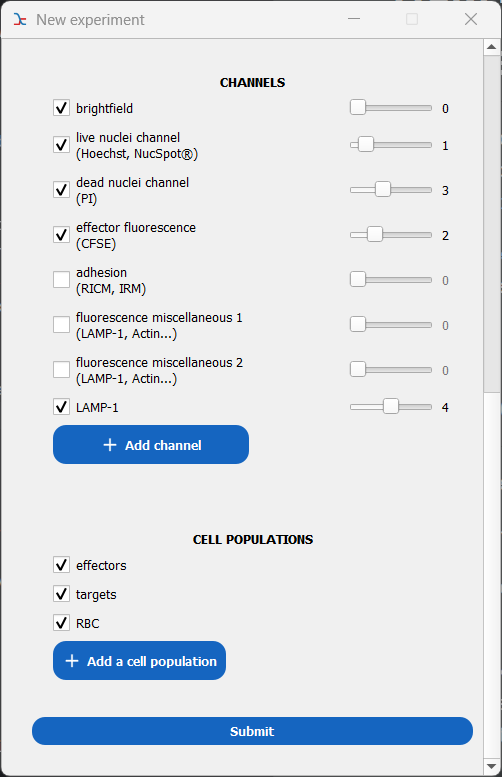
Example of a 5-channel and 3-population configuration.
Submit.
In the pop-up window, fill the information for each well (cell type, antibody, concentration, pharmaceutical agents). Fields can be left blank.
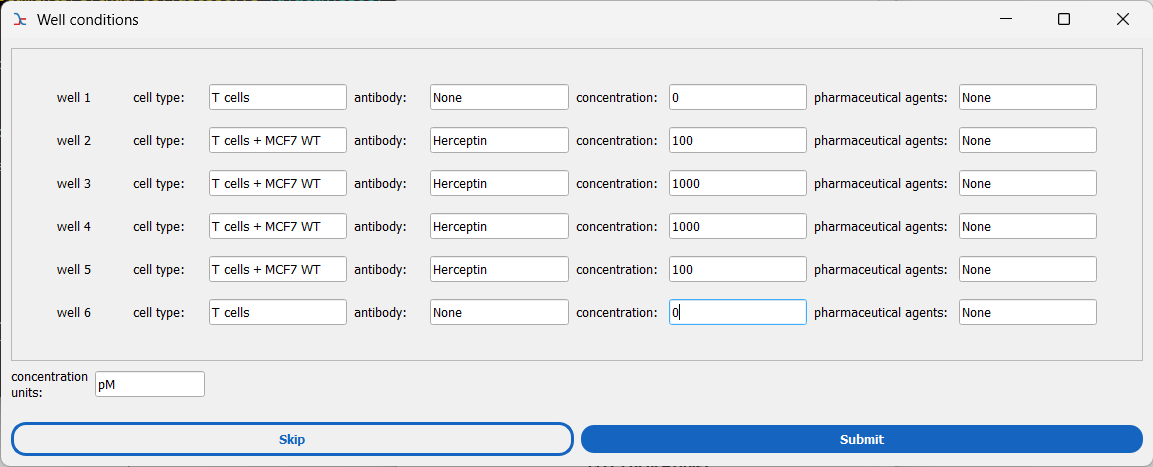
Example for a 6-well experiment with multiple biological conditions.
After submitting:
The dialog closes.
The path to the newly created experiment is automatically loaded in the startup window. Click Open to access it.
On the disk, the experiment folder is created with a configuration file that looks like the example below.
Drag and drop the image stacks
Open the project in Celldetective. Click on the icon next to the experiment name in the top menu to open the experiment folder.
Drag and drop each TIF stack file in its its corresponding position folder, specifically in the
movie/subfolder (e.g.,W1/100/movie/). Step not automated.