Segmentation
I/O
The segmentation module takes a stack of microscopy images as input and produces a stack of instance segmentation masks, delineating each cell in the images. The results are saved frame by frame in a labels_*population* subfolder within each position folder.
Overview
The process of instance segmentation takes an image (multichannel or not) as its input and yields a label image (2D), where each segmented object is attributed a single label.
In Celldetective, you may want to specifically segment up to two cell populations of interest on the images (typically target and effector cells but it could be anything). Segmentation can be carried out using traditional segmentation pipelines (based on filters and thresholds) or using Deep-learning models trained for such task. Celldetective proposes both options and allows a cross-talk between the two. As illustrated below, the output of a traditional segmentation can be corrected and used as an input to a DL model directly in Celldetective. That is only one of many paths to perform segmentation in Celldetective.
Overview of segmentation options in Celldetective. Celldetective provides several entry points (black arrows) to perform segmentation, with the intent of segmenting specifically a cell population (left : effectors, right : targets). The masks output from each segmentation technique can be visualized and manually corrected in napari. Exporting these corrections into a paired image and masks dataset can be used either to fit a generalist model (transfer learning) or train one from scratch. Once the segmentation is satisfactory enough, the user can decide to proceed with the tracking and measurement modules.
Traditional segmentation
In many applications, cell or nucleus segmentation can be achieved through the use of filters and thresholds, without having to resort to a Deep Learning model. Adapting such a model to a new system can be time-consuming and computationally expensive, as it usually requires numerous annotations. To ensure a user-friendly experience with Celldetective, we developed a robust framework for traditional segmentation as a potent alternative to calling a Deep Learning model.
We call this UI the Threshold Configuration Wizard (TCW). This interface allows you to interactively build a segmentation pipeline step-by-step.
The Threshold Configuration Wizard. Preprocessing filters, threshold and object options on the left, the image with the detected objects on the right (live nuclei of the ADCC demo).
The numbered steps are described in How to segment with the Threshold Configuration Wizard.
The wizard guides you through four stages:
Preprocessing — enhance the image with filters (
gauss,median,std, etc.) to make objects easier to detect.Thresholding — binarize the image to separate foreground from background.
Object Detection — split touching objects using a watershed or label all connected components.
Property Filtering — remove false positives based on morphology or intensity queries (e.g.,
area < 100).
The pipeline can be saved as a .json config file, which can be loaded later via the Upload model window.
For a complete step-by-step walkthrough, see How to segment with the Threshold Configuration Wizard.
Deep learning segmentation
Models
Celldetective ships with Deep-learning segmentation models trained with the StarDist [3] or Cellpose [4] [5] algorithm. They are split in two families:
Generalist models — models published in the literature that have been trained on thousands of images with one or two channels, on general tasks such as segmenting all nuclei visible on the images. In some cases, more than one modality was passed in the channel slots during training to force the model to generalize and be less sensitive to the modality.
Population-specific models — models that we trained from scratch on brand new multimodal data to achieve more specific tasks such as detecting the nuclei of a population in the presence of another. In this configuration, accurate segmentation often requires to look at multiple channels at once, i.e. performing a multimodal interpretation.
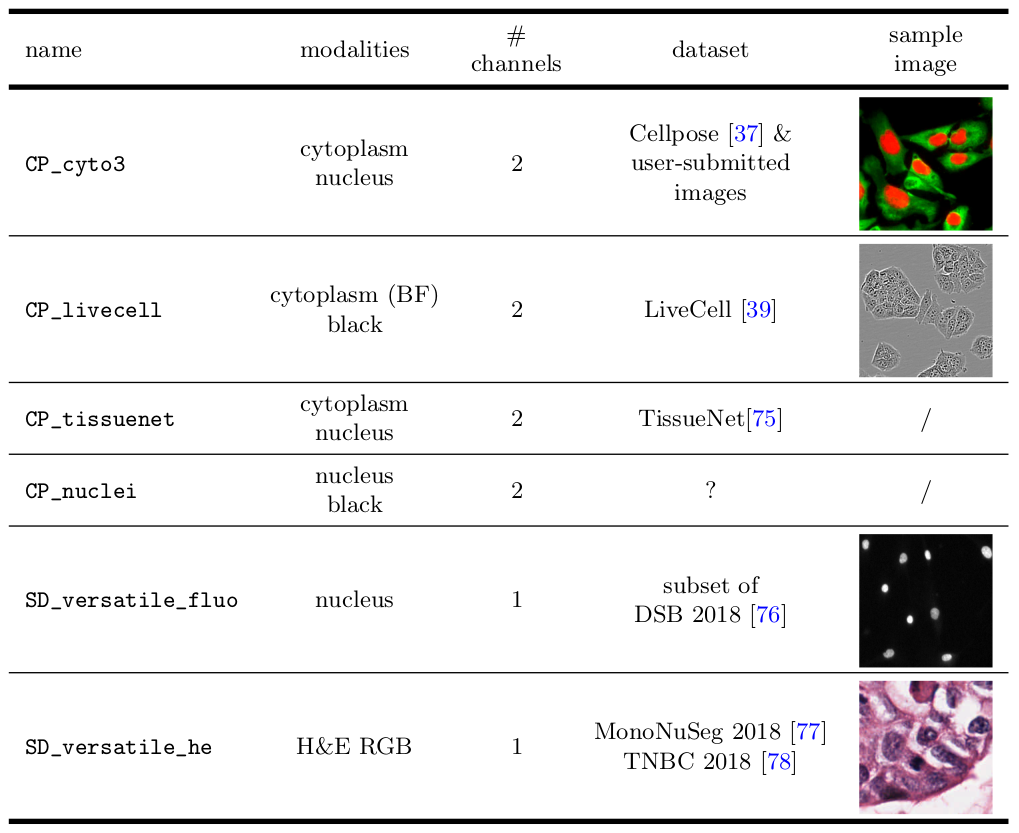
Generalist models. This table lists the different generalist models (Cellpose or StarDist) which can be called natively in Celldetective. The images have been sampled from their respective datasets, cropped to ( 200 × 200 ) px and rescaled homogeneously to fit in the table.
Name |
Modalities |
# channels |
Dataset |
Sample Image |
|---|---|---|---|---|
|
cytoplasm, nucleus |
2 |
Cellpose [4] & user-submitted images |
|
|
cytoplasm (BF), black |
2 |
LiveCell [6] |
|
|
cytoplasm, nucleus |
2 |
TissueNet [7] |
/ |
|
nucleus, black |
2 |
? |
/ |
|
nucleus |
1 |
subset of DSB 2018 [8] |
|
|
H&E RGB |
1 |
Target models. MCF-7 nuclei segmentation models that we developed for our application. The models have been trained on the db_mcf7_nuclei_w_primary_NK dataset available in Zenodo.
Name |
Channels |
Type |
Pretrained |
Spatial calib. (μm) |
Sample Image |
|---|---|---|---|---|---|
|
Hoechst, Brightfield, CFSE, PI |
StarDist |
None |
0.3112 |
|
|
Hoechst |
StarDist |
|
0.3112 |
Effector models. Primary NK segmentation models that we developed for our application. The models have been trained on the db_primary_NK_w_mcf7 dataset available in Zenodo.
Name |
Channels |
Type |
Pretrained |
Spatial calib. (μm) |
Sample Image |
|---|---|---|---|---|---|
|
brightfield, CFSE, Hoechst |
Cellpose |
None |
0.2178 |
|
|
CFSE, None |
Cellpose |
|
0.2178 |
|
|
RICM |
Cellpose |
None |
0.2 |
Importing and applying models
Models are imported via the button in the Segmentation panel. This creates a configuration file that maps your experiment’s channels to the model’s expected inputs, including spatial calibration and normalization.
When you set the channels for a model, the dialog also asks for the cell size
in microns whenever the model has a trained size to be rescaled against: the
frame is resized until its objects reach the size the network was trained to see.
Models built through celldetective record that size as cell_size_um; a
generalist Cellpose model records it in pixels instead, as the diameter it was
trained on at its own calibration, so it is asked for those too. The dialog
reopens on the size you last set, and a model with no trained size is never given
one behind your back. The button next to the field puts back
the size the model was trained on.
For a detailed list of all import parameters, see the Segmentation Data Import Reference.
For a complete step-by-step walkthrough (including generalist model configuration), see How to apply a segmentation model.
Mask visualization and correction
Once a position is segmented, the results can be visualized in napari by clicking the button of the SEGMENT row. This overlays the segmented masks on the original images.
With napari, segmentation mistakes can be corrected using the brush, eraser, and fill tools. Celldetective provides two plugins:
Save the modified labels — overwrite the masks in place.
Export the annotation of the current frame — create an annotated pair (image + mask) to train a Deep Learning model on your data.
Above these buttons, a set of options controls the automatic fixes applied to the masks when they are saved or exported:
Split merged labels — separate objects that mistakenly share a single label value (detected when an object’s bounding box is much larger than the object itself). Enabled by default.
Remove small objects — discard objects smaller than the Min object area (px²) threshold (default
9, i.e. 3×3 pixels). Enabled by default. Uncheck it (or set the area to0) to keep every object regardless of size.Fill holes in masks — fill holes inside cell masks. Disabled by default.
The labels are always re-numbered consecutively from 1 on save to avoid encoding errors, regardless of these options.
For a step-by-step annotation workflow, see How to annotate for segmentation. To train a model on your annotations, see How to train a segmentation model.
Segmenting a single frame from napari
The top of the same right-hand panel segments the frame currently on screen, without leaving the viewer or launching a run over the whole position. It is the quickest way to try a model, a channel mapping or a threshold pipeline on one frame and look at the result straight away.
Its two tabs are the two ways of segmenting a population in celldetective:
Model runs a segmentation model, Threshold applies the configurations
written by the threshold configuration wizard. Both write into the
segmentation layer, where Ctrl+Z undoes them, and neither touches the
disk until Save the modified labels is used.
With a segmentation model
Segmenting the frame on screen with a model. The lymphocytes_ricm model was run on frame 20 of the RICM demo: the labels of that frame were replaced by the model’s output, in the segmentation layer.
The Model tab (1) picks a model for this population (2): one that has not been downloaded yet is fetched on first use. Map the channels with one dropdown per input of the model (3), and leave the parameters blank to use the model’s own values (4). Replace the labels on this frame chooses between segmenting the frame afresh and only filling the background (5). Segment this frame runs in the background (6), and the new labels land in the segmentation layer (7), where Ctrl+Z undoes them.
model — any model available for this population, plus the generic ones. A model that has not been downloaded yet is offered too; it is fetched on the first run.
channels — the same rows as the channel dialog of the main window: one dropdown per input slot of the chosen model, seeded from the mapping already saved there. Set a slot to
Noneto leave it blank. The same experiment channel may feed several slots.parameters — the values that model type actually takes: cell probability and flow threshold for Cellpose models, and cell size for every model whose trained object size can be worked out. Leave a field blank to use the model’s own value.
Cell size is the typical object size in these images, in microns, and it is what drives the rescaling: the frame is resized until objects reach the size the network was trained to see, which is where a model does its best work. A model built through celldetective records that size as
cell_size_um; a generic Cellpose model records it in pixels instead, as the diameter it was trained on at its own calibration, so the row is offered for those too. The trained size itself — Cellpose’s 30 px, say — is not a setting and is never asked for: a network trained to see 30 px objects should go on being asked for 30 px ones, and it is the image that moves.Replace the labels on this frame — ticked, the frame is segmented afresh. Unticked, the existing labels are kept and the new ones only fill the background, so manual corrections on that frame survive.
The run happens on a background thread, so the viewer stays usable; the button turns into Cancel while it works. Inference itself cannot be interrupted, so cancelling during a forward pass returns the interface to normal and discards the result when it lands, while cancelling during model loading stops before any inference happens.
The result is written into the segmentation layer and can be undone with
Ctrl+Z like any other edit. Nothing reaches disk until Save the modified
labels is used, and the settings chosen here stay local to the napari session:
they are never written back into the model configuration, so trying something out
cannot change what the next full-position run does.
Note
Segmentation here runs on the CPU, leaving the GPU to the viewer’s renderer. A single frame is quick, but expect it to be slower than the same model running over a position in the main window.
With a threshold pipeline
The Threshold tab applies the .json configurations of the threshold
configuration wizard to the frame on screen, exactly as the batch pipeline
applies them — same files, same merging of several of them. What is tried here
is therefore what a full run would produce, and it can be tried where the
pipeline is hard to get right rather than over the whole frame.
Thresholding the frame on screen, inside two regions. The ADCC demo’s own threshold_config_targets.json was applied to frame 22, within two rectangles drawn on a shapes layer: only the nuclei inside them were labelled.
The Threshold tab (1) shows the configuration in use (2), the name of the
file or n merged when several are applied. Load… picks one or more
.json configurations, and Wizard… opens the
threshold configuration wizard
on this very frame and loads back whatever it saves (3). region thresholds
the whole frame or only the shapes of a shapes layer, which the +
button creates and selects, ready to draw rectangles in (4). Replace the labels in the
region clears the objects already there before writing the new ones (5), and
Also the following frames repeats the run from this frame to the end of the
movie (6). Threshold this frame starts it (7); here, the region was the two
rectangles drawn on the frame (8).
config — the configuration(s) applied, in the order they were picked. Several are merged at the object level with the
ORrule of the batch pipeline. The choice is remembered for the experiment, inconfigs/last_threshold_configs.json, so the same pipeline is loaded again the next time the viewer is opened — whether it was picked here, in the Upload model window of the main window, or just written by the wizard.region —
whole frame, or any shapes layer of the viewer. Rectangles, polygons and ellipses count; lines and paths enclose nothing. An object is kept when its centre falls inside the shapes, so a cell straddling the edge of a rectangle is either in or out, never cut in two. The shapes of the current frame are used, or, when it has none, those of the closest earlier frame, so a region drawn once carries on through the movie.Replace the labels in the region — ticked, the region is segmented afresh: the objects whose centre lies in it are cleared first. Unticked, they are kept and the new ones only fill the background around them, so manual corrections survive.
Also the following frames — the button becomes Threshold from this frame on, and every frame from the one on screen to the end of the movie is thresholded, all of them within the region drawn on the current frame. A counter under the button follows the run, each frame appearing in the viewer as it is done. Cancel stops before the next frame and keeps what is already done; a single Ctrl+Z takes the whole run back.
Correcting a training annotation
Both tabs are offered when correcting a training annotation, from Plugins >
Correct a segmentation annotation in the start window. An annotation is the image
exported with Export the annotation of the current frame, next to its mask (_labelled.tif) and
a .json file recording its channels and spatial calibration. The panel reads the
channels from that file, so an annotation can be started from a model’s output and
corrected by hand rather than drawn from nothing. Save the modified labels
overwrites the _labelled.tif mask.
An annotation still sitting in the annotations_<population> folder of its
experiment is recognised as belonging to it, so the threshold configurations
remembered for that experiment are offered there too. The Wizard… button,
which needs the movie of a position, is greyed out on an annotation.


