Measurements
Prerequisite
Cells must be segmented prior to measurements. The cells can be tracked or not.
I/O
The measurement module takes both the segmentation masks and microscopy images as input. If the cells were tracked prior to measurement, the trajectory table is appended with new columns corresponding to the measurements. Otherwise, a look-alike table is output by the module, without a TRACK_ID column (replaced with an ID column).
Overview
Celldetective offers a range of single-cell measurement tools, from mask-based intensity features to texture analysis and cell-cell interactions. The measurements are performed frame by frame and appended to the tracking/detection table.
Background correction
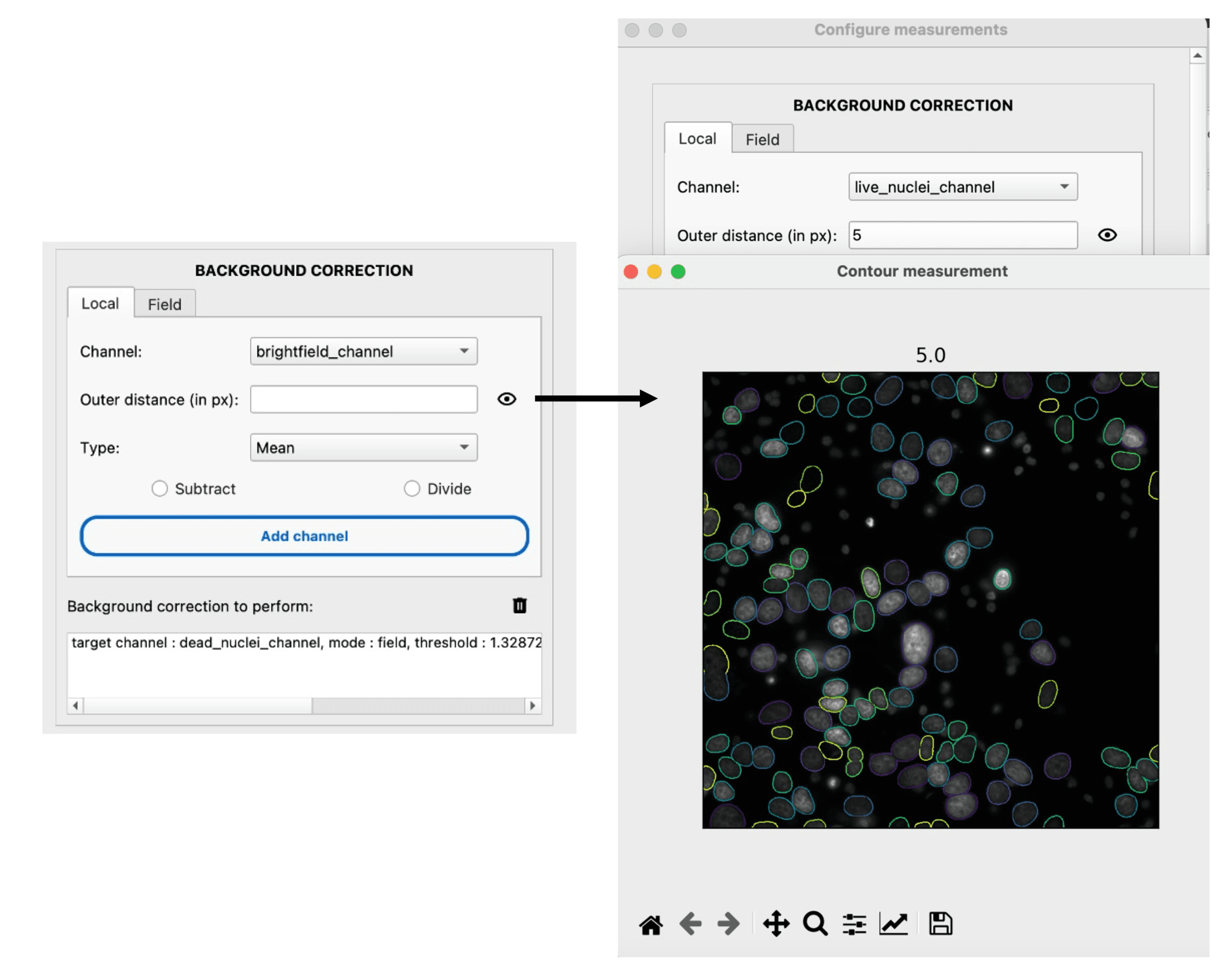
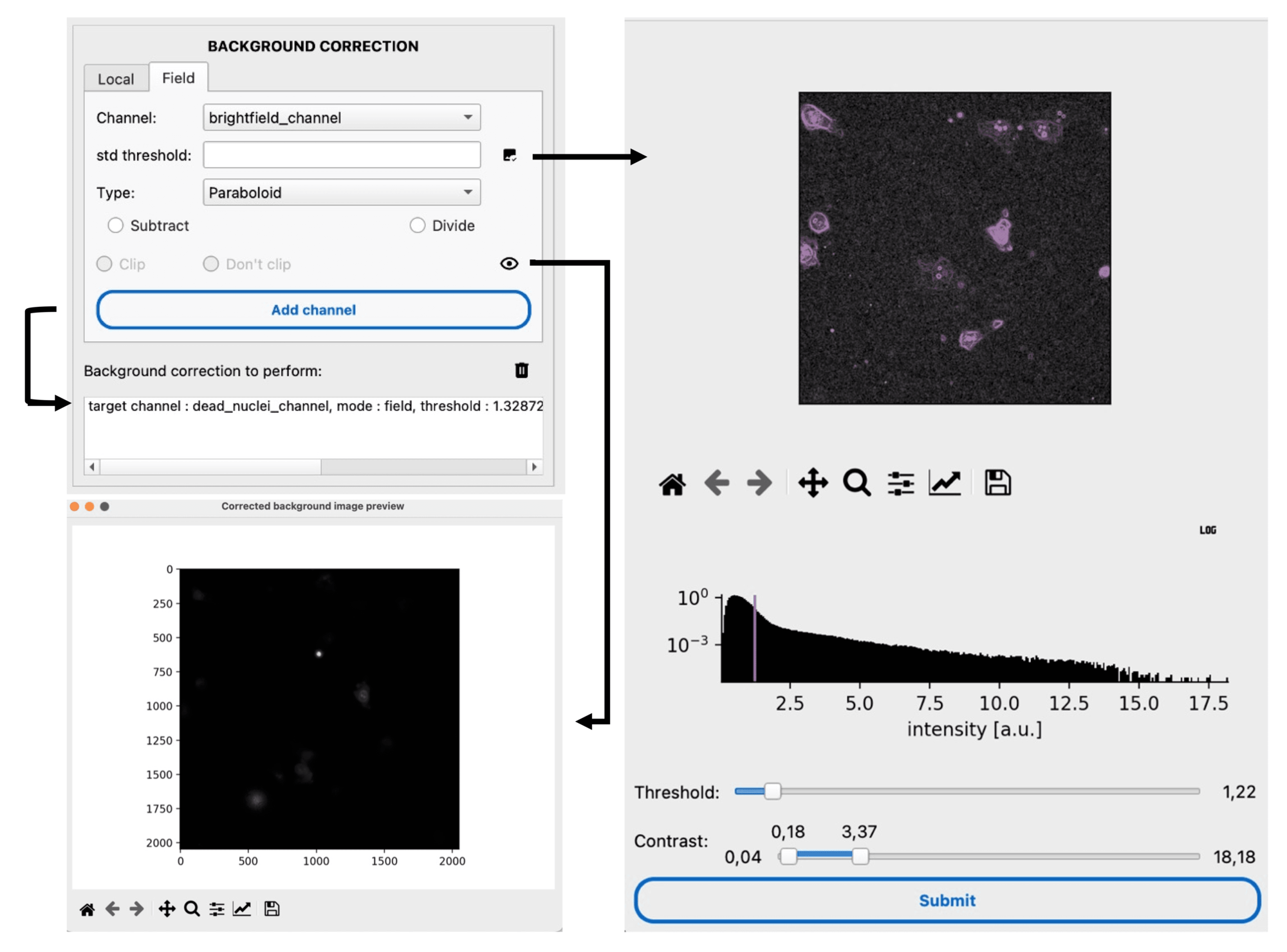
Background correction removes uneven illumination before measuring intensities. Two strategies are available:
Local — each cell is corrected individually using the surrounding background intensity. The estimation distance is adjustable and the background can be either divided or subtracted.
Field — the entire field of view is fitted by a 2D surface (plane or paraboloid) after excluding cells by a threshold on the standard deviation. The extracted background is then divided or subtracted.
See also
How to measure locally corrected intensities for a step-by-step guide on local correction.
Mask-based measurements
The segmentation mask defines the ROI over which single-cell measurements are performed at each time point.
Basic features — morphological (
area,perimeter,eccentricity,solidity, etc.) and intensity properties ({channel}_mean,{channel}_max,{channel}_min) fromscikit-image.regionprops. Only explicitly selected features are included in the output.Contour measurements — intensity features within specific bands relative to the cell boundary. Positive distances measure inside (erosion); negative distances measure outside (dilation). A range
(min, max)defines a ring band.:term:`Haralick Texture Features` — texture analysis via gray-level co-occurrence matrices (GLCM). Computationally expensive; optional.
Position-based measurements
Position-based measurements rely solely on centroid coordinates and are independent of mask shape. Useful for tracked cells where masks might be missing.
Isotropic measurements — intensities within circular or ring-shaped ROIs centered on the cell, with configurable radii and statistical operations (mean, std, sum, median, min, max).

Spot detection
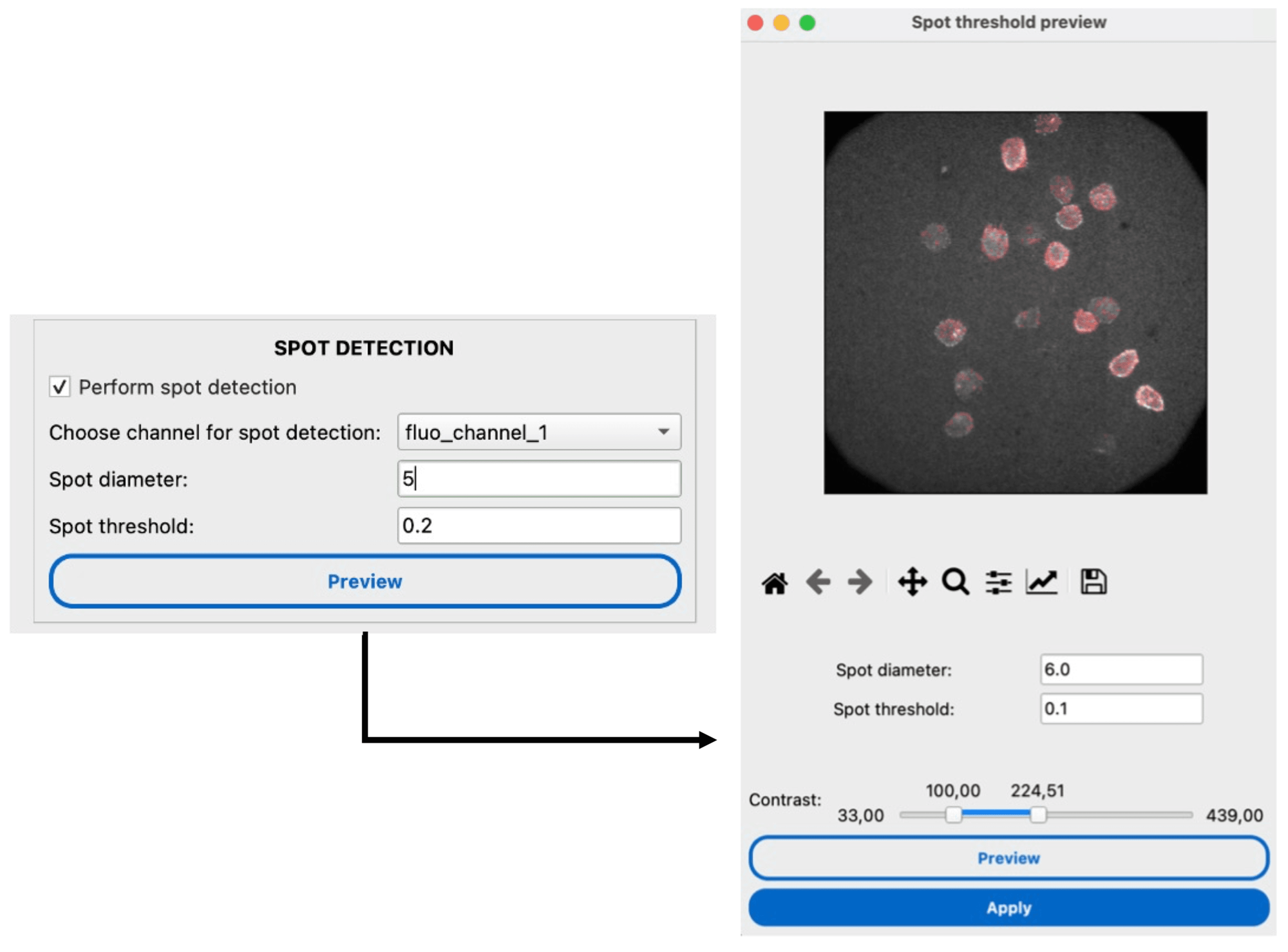
Detect and count intracellular spots (e.g., FISH probes, vesicles) using Laplacian of Gaussian (LoG) blob detection.
See also
How to detect sub-cellular spots for a step-by-step guide.
Static classification
Cells can be classified into groups characterized by a distinct phenotype (e.g., positive vs negative) based on their measured features, using conditional rules in the Classifier Widget.
See also
How to perform conditional cell classification for a step-by-step guide.
Neighborhood measurements
Neighborhood measurements quantify the spatial relationships between cells — essential for studying cell-cell interactions (e.g., immune cell targeting, tissue organization).
See also
How to measure cell-cell interactions for a step-by-step guide. | Neighborhood Measurement Settings Reference for parameter details.
Phenotype Annotator
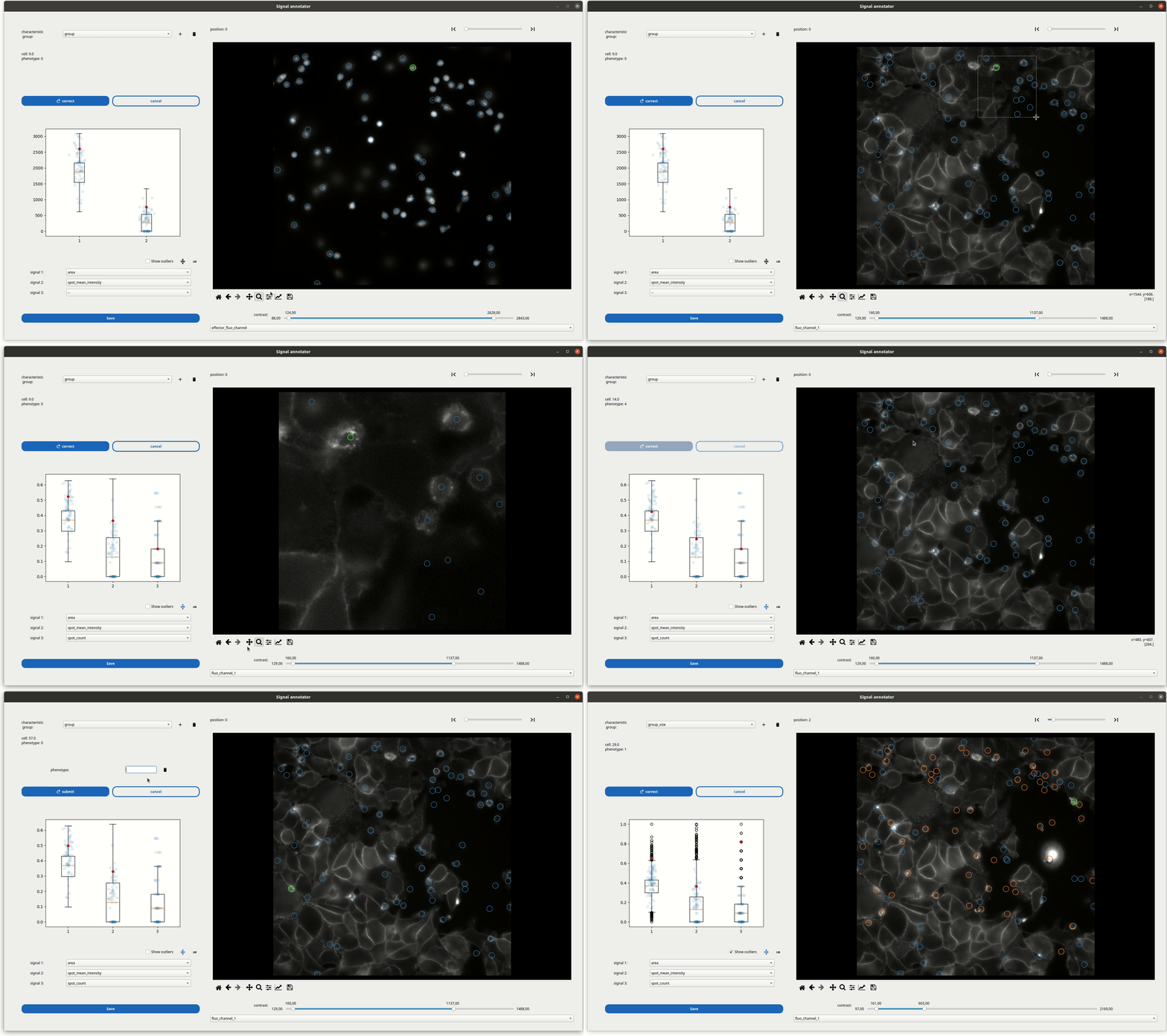
We provide an interactive viewer for inspecting single-cell measurements. The left panel is organized into two tabs:
Signals tab
Clicking on cells highlights them and displays their specific measurements.
Timeseries trajectories are visualized for tracked cells.
Compare single-cell values against population distributions (strip plots, box plots).
Toggle log scale, normalize features, or flag outliers directly from the toolbar.
Cell Histogram tab
Displays the pixel intensity histogram of the selected cell’s segmentation mask on the current channel.
Vertical lines indicate the mean, median, and mode of the intensity distribution.
Toggle between count and density mode; in density mode, y-axis limits are remembered across frames for stable visualization.
Log scale toggle and save-image button are integrated into the matplotlib toolbar.